SSH and SCP
Different examples to use ssh command
In this article, you will learn to use the ssh command to connect and log in to the remote server.
1. ssh command to connect to a remote machine
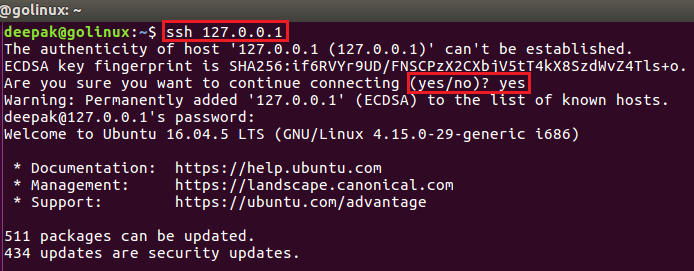
You can connect to a remote machine by using its IP address.
Advertisement
$ ssh IP_addressSample Output:

When you try to connect for the first time, it asks for continuing the connection. Type yes and press Enter. Then it asks you to enter the password, which you will use later to log in to the remote machine.
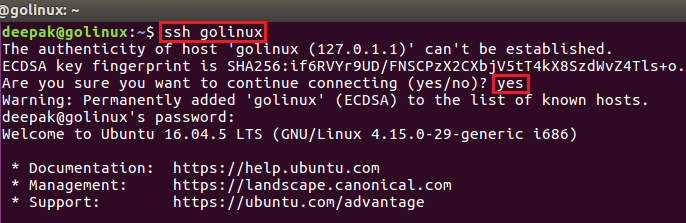
You can also connect to a remote machine using its name.
Sample Output:

Note: You can press "Ctrl + D" or enter exit command to close the SSH connection.
2. Login with a different user in SSH connection using ssh command
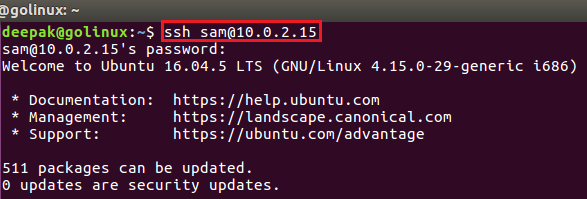
By default, the ssh command logins with the current user when connecting to a remote server. To use another user, you can use the following command:
OR
Sample Output:
Advertisement

You can also use the hostname instead of the IP address.
3. ssh command to generate SSH keys
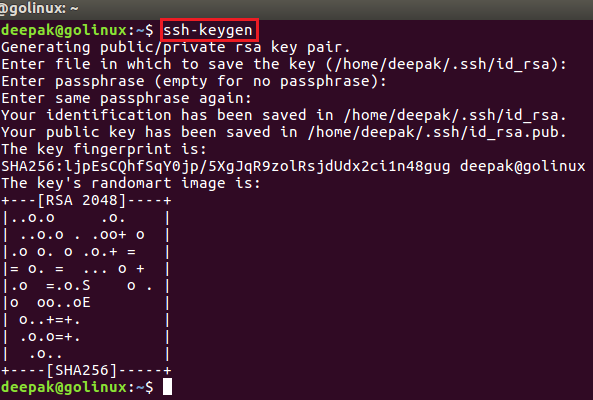
You can generate SSH key pair using ssh-keygen to secure the SSH connections. It generates a pair of public and private keys. When you generate an SSH key pair, you can access a server without entering a password.
Sample Output:

4. ssh command to copy public SSH key to a server
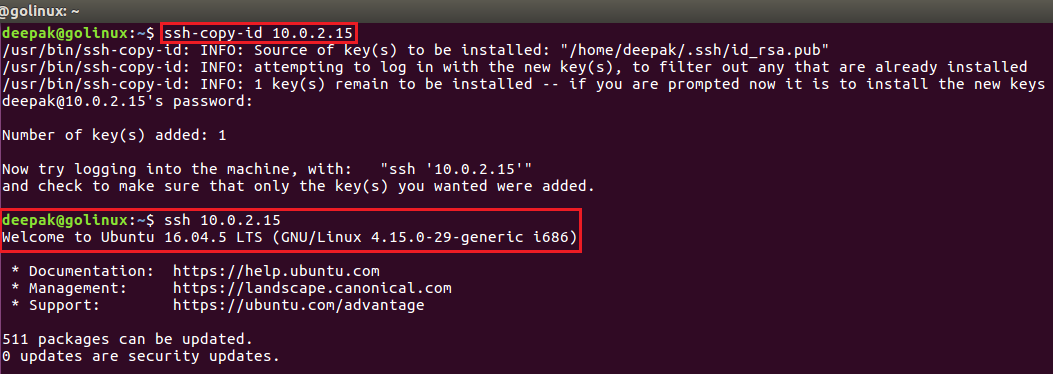
You need to copy the public SSH key in order to use the key for SSH authentication. To copy the key generated from the previous command, you can use:
Sample Output:

After successfully copying the public key, you do not have to enter a password to connect to a remote server.
How scp command works (syntax)
The scp connects to the ssh server and executes the command. The scp exits 0 on success, and >0 if an error occurs. The basic syntax of scp command is:
Advertisement
scp can be used to transfer files and directories securely from one Linux to another Linux server. You can also copy the same file and directory to more than one hosts.
Replace [option] with supported list of options which we will cover throughout this cheat sheet tutorial:
Replace {files|directories} with the file(s) or/and directory which you intend to copy to remote or source host
The destination to which the source file will be copied is defined by user1@destination_host1:directory1/filename1. You can add more than one hosts to copy files and directories to more than one destination host
user1is the account of the destination Linux server using which SSH will be performeddestination_host1is the hostname of the destination computer.directory1is the directory name under which the source file will be copied. If not dpecified then the file will be copied to the home directory of the user used to do SSH. For example, here user1's home directory would be used if destination is not specified.filename1is the name of source file which will be copied. Now ideally we don't specify filename in which case, the filename of the source would be used on destination. We specify the filename mostly when we want to copy the file as a different name on destination host.
If the source file already exists in the destination computer, scp will replace the contents of the destination file with the source file (keeping the inode). If the destination file does not exist yet, an empty file with destination filename is created and the contents of the source file are added to it.
Different examples to use scp command
As we have gone through the detail of scp, now let's see the practical examples of scp command in Linux hosts.
Advertisement
1. scp command to copy a file from local to remote host
You can use the following command to copy a file from a local host to a remote host.
Sample Output:
2. scp command to copy a file from remote to local host
To copy a file from a remote host to a local host, you can use the following command.
Sample Output:
3. Transfer files between two remote hosts with scp command
You can copy a file from one remote host to another remote host using -3 option with scp command. Without this option the data is copied directly between the two remote hosts.
In this example we will copy /tmp/file1 from server-1 to server-2 using client host.
Next we will connect to client host and copy /tmp/file1 from server-1 to server-2:
Verify the file on server-2:
Advertisement
The file is successfully copied, but as you can see that the scp command prompts for password of both the host at the same time wherein the password of one of the destination host is not visible on the console but while providing the password of second destination host, the password is visible in plain text format on the console.
So scp may not be the best to tool transfer files from one remote host to another remote host.
4. scp command to copy files and directories recursively
-r option allows you to copy an entire directory recursively. All the files and sub-directories present in that directory will be copied.
Sample Output:
5. Display verbose output for scp command
With the help of -v option, you can view the detailed information of scp process in the background. It prints the debug information which can help to debug connection, authentication, and configuration problems.
Sample Output:
Last updated